MyDrive Direct
Connect MyDrive directly to your computer. (Direct access for Windows)
- Download MyDrive Direct and install it.
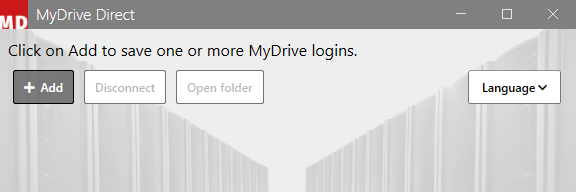
- In MyDrive Direct, click on Add.
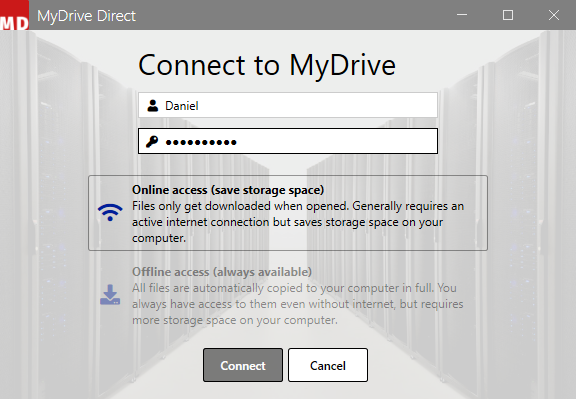
- Enter your login details and select Connect.
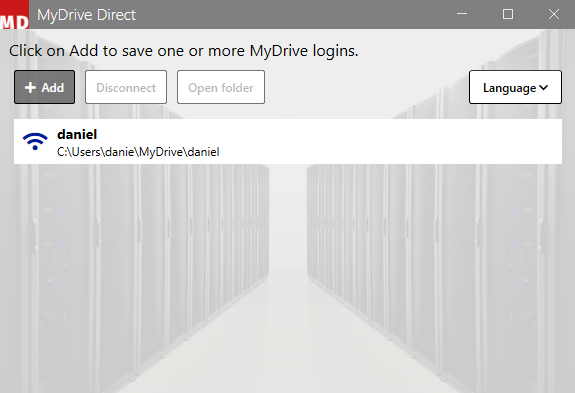
- Click on your newly created connection and then select Open folder.
Note: To change the synchronization mode, click the blue icon to the left of the username.
- Here you will see all the data from your MyDrive cloud storage and can work with it as normal.
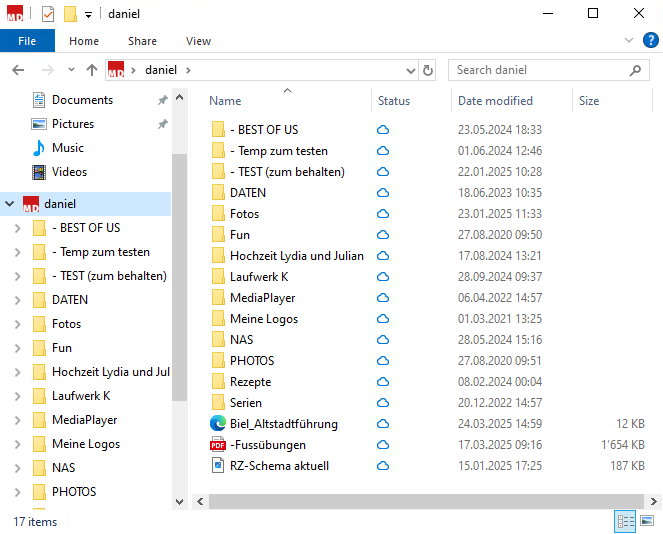
Icon descriptions
| Symbol | Meaning of the symbol |
 |
Files and folders are synchronized and automatically downloaded when opened. |
 |
Files and folders are synchronized and have already been downloaded. |
 |
Files and folders are currently being synchronized. |
 |
A file or folder cannot be synchronized. |
 |
A file or folder is ignored and not synchronized. |